Sometimes you need text that looks blank for a line break, an emoji sequence, a form-field test, or a formatting fix. Knowing how to type an invisible character helps, but “invisible” can describe several Unicode characters with different jobs.
The safe method is simple: pick the right code point, copy and paste it when needed, then test it in the exact app where you’ll use it.
Key Takeaways
- Invisible characters still exist in text, even when you can’t see them.
- U+200B creates a possible line-break point, while U+2060 prevents one.
- Windows and macOS offer character utilities, but phone support varies by app.
- Hidden characters can break searches, validation, and copy-and-paste.
- Avoid them in passwords, usernames, public links, and sensitive text.
What an Invisible Character Really Is
An invisible character is a Unicode code point with no visible glyph. It can still change wrapping, script shaping, emoji display, or character counts. In other words, blank-looking text may not be empty.
The Unicode format-character specification lists several controls that people commonly mean when they ask for an invisible character:
- U+200B ZERO WIDTH SPACE creates an optional word or line-break opportunity.
- U+200C ZERO WIDTH NON-JOINER prevents letters from joining in scripts where joining changes shape.
- U+200D ZERO WIDTH JOINER joins characters, often within emoji sequences.
- U+2060 WORD JOINER prevents a line break without adding visible width.
A no-break space, U+00A0, works differently. It keeps nearby words together, but it creates a visible-width gap. That makes it useful for “10 GB” or a name that should not split across lines, yet it isn’t truly zero-width.
How to Type an Invisible Character on Any Device
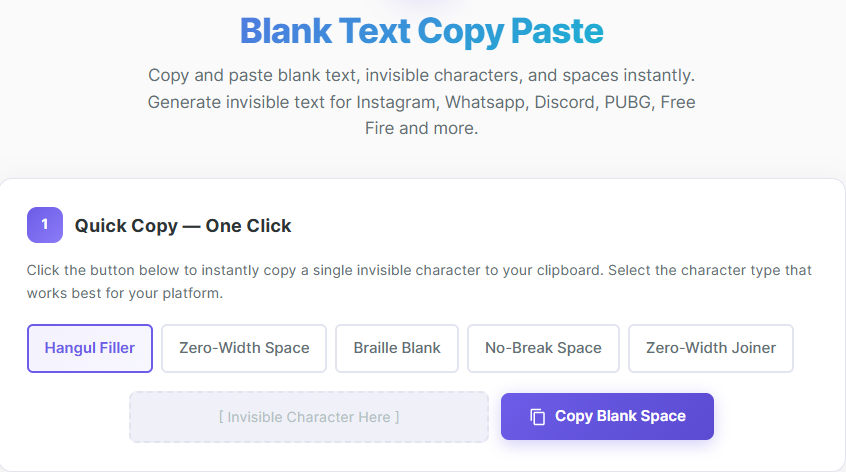
On Windows, open Character Map by searching for “Character Map” in the Start menu. Finding a zero-width control can be awkward because it has no visible shape, so a trusted invisible character copy-and-paste reference can be faster for occasional use.
In Microsoft Word and some other Office apps, type a Unicode code point, then press Alt+X. For example, type 200B, then press Alt+X to convert it to U+200B. Microsoft documents this workflow in its guide to inserting Unicode character codes in Word.
However, Alt+X support varies. PowerPoint and other Office programs may not convert every code, so Character Map or Insert > Symbol may work better. Also, Alt+0173 creates U+00AD SOFT HYPHEN, not U+200B.
On macOS, press Control + Command + Space to open Character Viewer. Search by character name when the viewer supports it, or copy the character from a Unicode reference and paste it into your document.
Android and iPhone keyboards don’t offer one universal shortcut for every hidden Unicode control. Copying the character to your clipboard is usually easiest. You can also save it as a text-replacement entry or use a keyboard app with text expansion. Always test the result, because messaging apps, social platforms, and browsers may strip it.
Choose the right character for the job
Use U+200B when a long string needs a possible wrap point. For example, it may help an unbroken web address wrap inside a narrow layout.
Use U+2060 when text must remain together without a visible space. U+200D joins code points in some emoji sequences, while U+200C stops joining in scripts such as Persian and Arabic. U+00A0 is the better choice when you need a visible space that refuses to break.
A zero-width space is not a blank space. It is a formatting instruction that software may keep, ignore, or remove.
When Invisible Characters Help, and When They Cause Problems
These controls have legitimate uses. They support word wrapping in languages that don’t use visible spaces, control letter shaping, build some emoji sequences, and test whether forms handle non-obvious input correctly.
Still, hidden characters often create confusing failures. Search boxes may treat two identical-looking names as different text. A validation rule may reject a value with an unexpected character count. Copying text into a CMS or chat app can also remove the control during paste or saving.
Programming languages don’t always treat U+200B as ordinary whitespace. As a result, a common trim function or regular expression may leave it behind. The text looks clean, but comparison checks continue to fail.
Check for hidden characters before sharing sensitive text
Hidden characters can confuse screen-reader users, moderators, and anyone copying a name or link. Spammers may insert them to disguise usernames, bypass exact-text filters, or make a message look familiar.
Use them only for a clear formatting purpose. Don’t place them in passwords, account names, payment details, public identifiers, or URLs you expect others to retype. If text looks suspicious, paste it into a Unicode inspector, code editor, or plain-text editor that reveals code points.
Frequently Asked Questions
Can I use an invisible character in a username?
Some platforms allow invisible characters, while others remove or block them. Check the platform’s rules first, and avoid hidden characters when they could make your account difficult to identify or easy to impersonate.
Why did the invisible character disappear after I pasted it?
A website, content filter, or text sanitizer may remove formatting controls during paste or saving. Try inserting it through the app’s character tool, then inspect the saved text to see what remained.
Is U+FEFF still the right zero-width character to use?
No. U+FEFF once had a zero-width no-break-space role, but Unicode deprecated that formatting use. Use U+2060 WORD JOINER when you need modern zero-width no-break behavior; U+FEFF is mainly associated with a byte order mark.
How can I find out which invisible character I copied?
Paste the text into a Unicode character inspector or a code editor that shows invisible characters. Look for the character name and code point, such as U+200B or U+2060, instead of trusting its appearance.
Final Thoughts
Typing an invisible character is often easiest with copy and paste or a character utility. The important part is choosing the code point that matches your goal, whether that means a possible break, no break, joining, or non-joining behavior.
A zero-width control and a visible no-break space are not interchangeable. Test the character in the exact app or website where it will appear, and keep hidden text out of sensitive or public identifiers unless it has a clear purpose.